In the shop
Use PanelPlanner offline and on your Home Screen
The shop often has no signal. Once you have opened the planner on a device, it keeps working without one. Put it on your Home Screen and it opens full screen, like any other app. The steps below are for an iPhone in Safari.
Steps
-
Open the planner in Safari. Tap the More menu (⋯) at the top right.
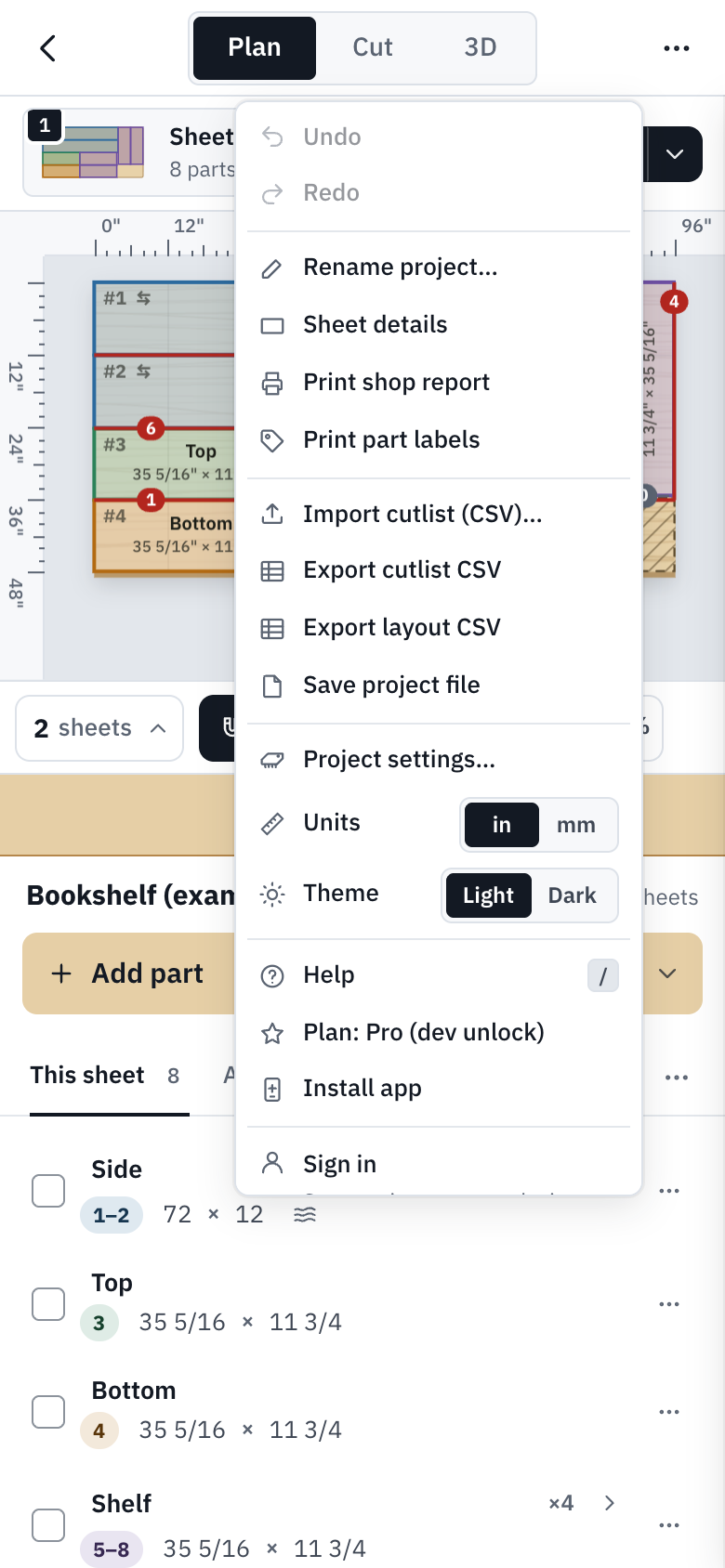
Install app is near the bottom of the More menu, below the Units and Theme switches. -
Tap Install app. The Install PanelPlanner window lists the taps.
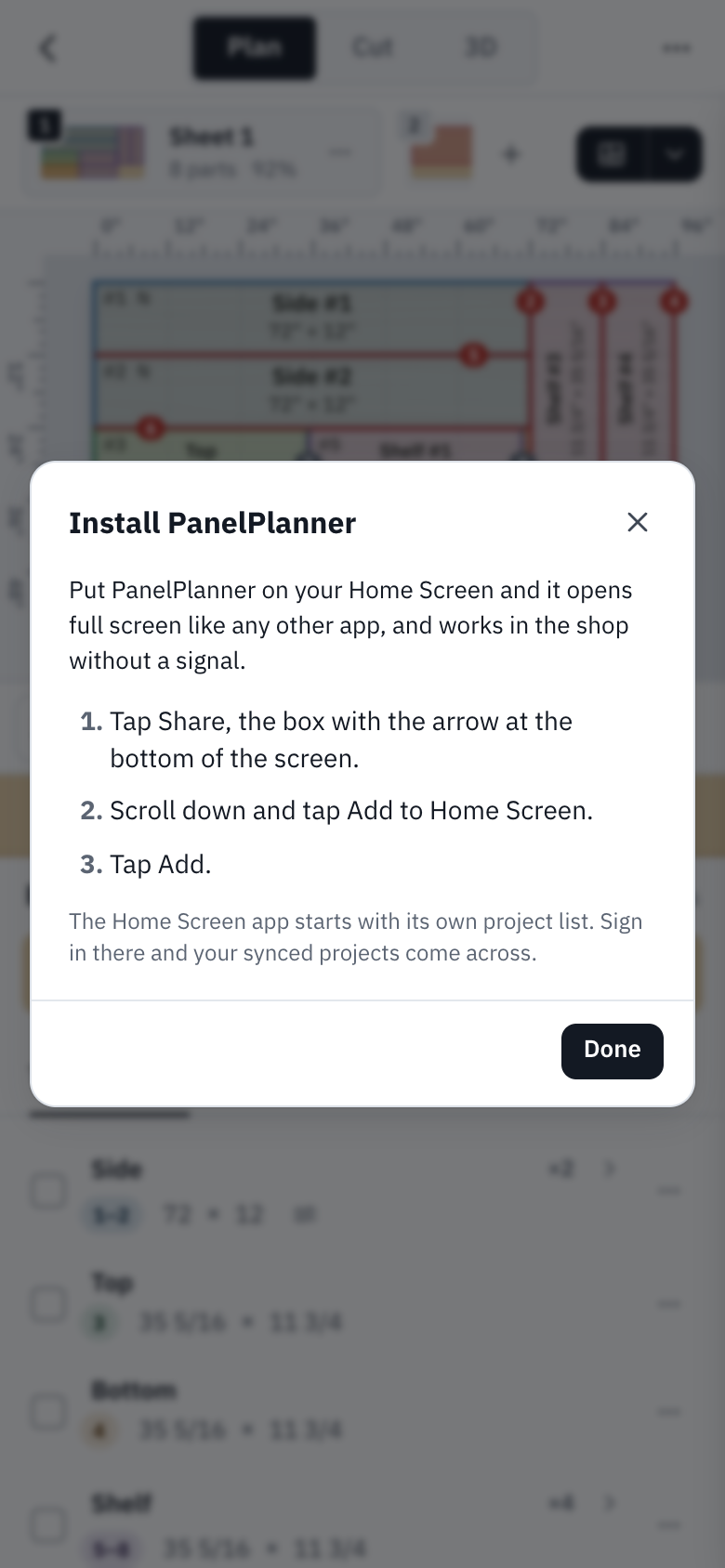
The window lists the same steps as this guide. Tap Done to close it. -
Tap Done, then tap Share, the box with the arrow at the bottom of the screen. (In Chrome on an iPhone, Share is next to the address bar.)
-
Scroll down and tap Add to Home Screen.
-
Tap Add. PanelPlanner is on your Home Screen. Open it from there and it fills the screen, with no browser bars.
On Android or a computer
In Chrome or Edge, open the More menu (⋯) and choose Install app: your browser asks you to confirm, and that's it. The install button in the address bar does the same. If Install app isn't in the menu, the app is already installed, or the browser doesn't offer installing.
Working offline
- Once you have opened the planner on a device, it opens and works with no signal, in the browser or from the Home Screen: plan, optimize, tick parts off in Cut mode, print.
- Projects save on the device as you work, signal or not.
- The 3D view loads its drawing code the first time you open it. Open 3D once while you have a signal and it works offline after that.
- The planner is the part that works offline. The home page, the examples and these guides are ordinary web pages, and they need a connection.
- When a new version is ready, a small Update ready message offers Reload.
Your projects on the Home Screen
On an iPhone the Home Screen app starts with its own project list, separate from Safari's. With an account and cloud syncPro, sign in there and your synced projects come across.
Try it
Try it Opens the planner. Then More menu, Install app.